Enrolling Linux Devices into Intune
Official onboarding guide for onboarding Ubuntu devices in Norvato Intune Tenant.
License & System Requirements
To onboard into the Norvato Intune Tenant, ensure you meet the following requirements:
- License: Your Norvato account must be granted an Intune license for Linux. By default you should have one.
- OS: Ubuntu Desktop 24.04 or 22.04 LTS.
- Desktop: GNOME Desktop UI is mandatory.
Full Disk Encryption
If you are unsure, BACKUP YOUR DATA and REINSTALL UBUNTU.
LUKS Encryption over LVM enablement in Ubuntu Setup takes place here:
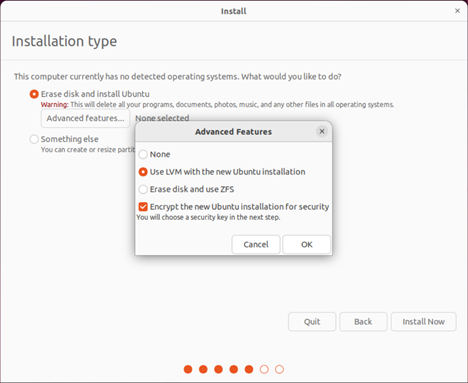
Or here:
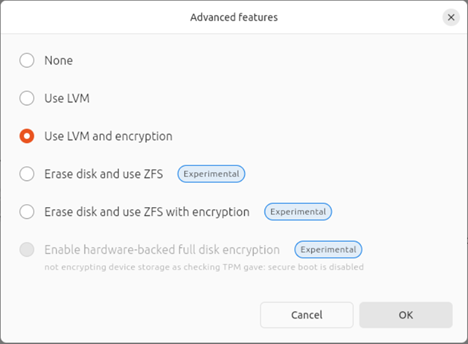
Note: Users are solely responsible for their encryption keys; Intune For Linux does not store any recovery keys.
Software Prerequisites
- Microsoft Intune Portal: Registers and enrolls the device.
- Microsoft Edge: Version 102.x or newer for accessing resources.
How to Enroll: Automated Procedure
The Norvato IT Projects & Corporate Workspace team has developed a Bash script that performs the heavy lifting for you.
Phase 1: Script Download & Execution
Download the script to your Downloads folder, set execution permissions, and launch it:
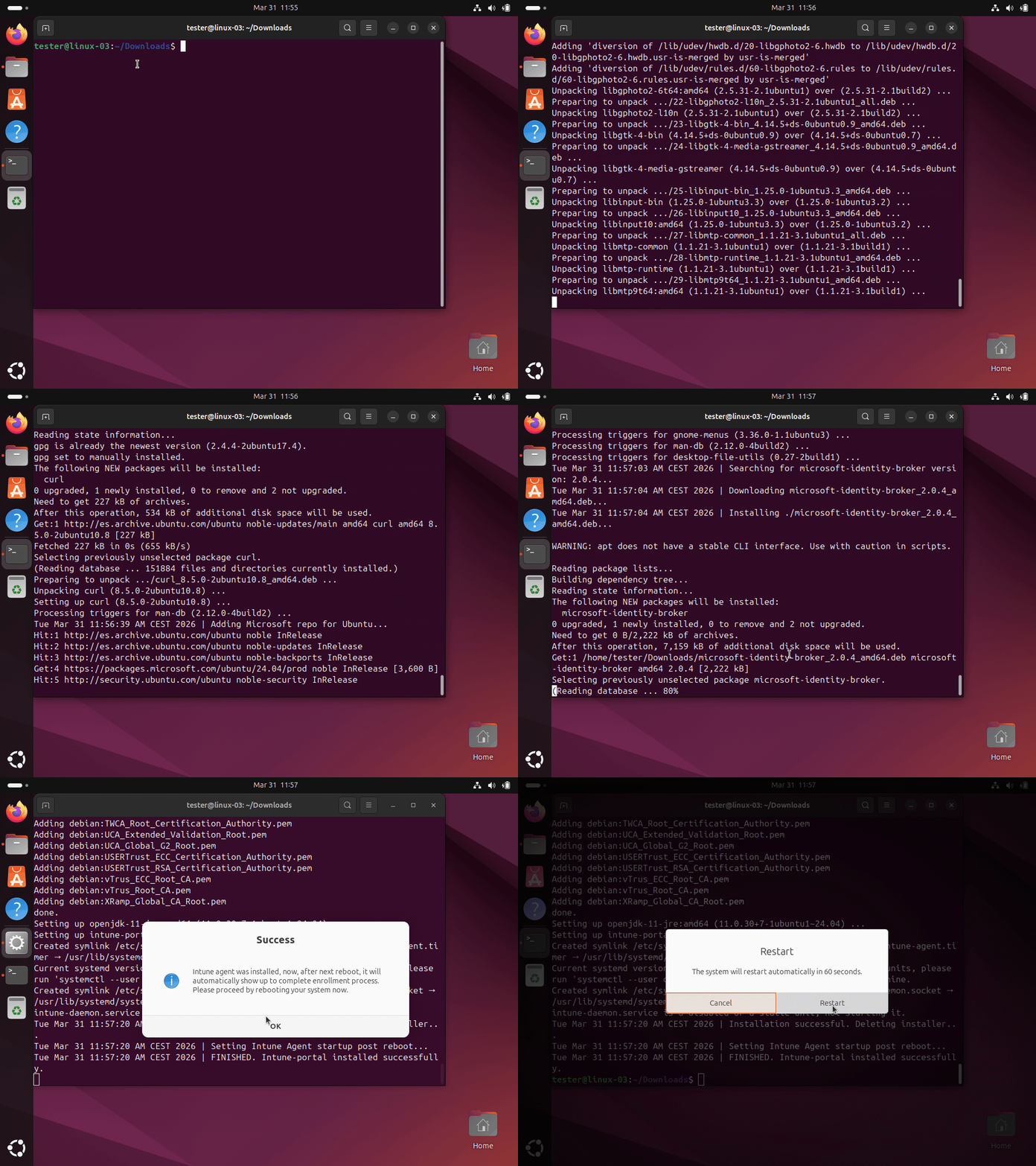 OK, Download the Script
Now, run this:
cd Downloads && chmod +x Linux-Intune-Prerequisitesv2.3.sh && sudo ./Linux-Intune-Prerequisitesv2.3.sh
Phase 2: Final Enrollment
After rebooting, the Intune Agent will launch on startup. Sign in with your Norvato credentials and follow the wizard to complete.
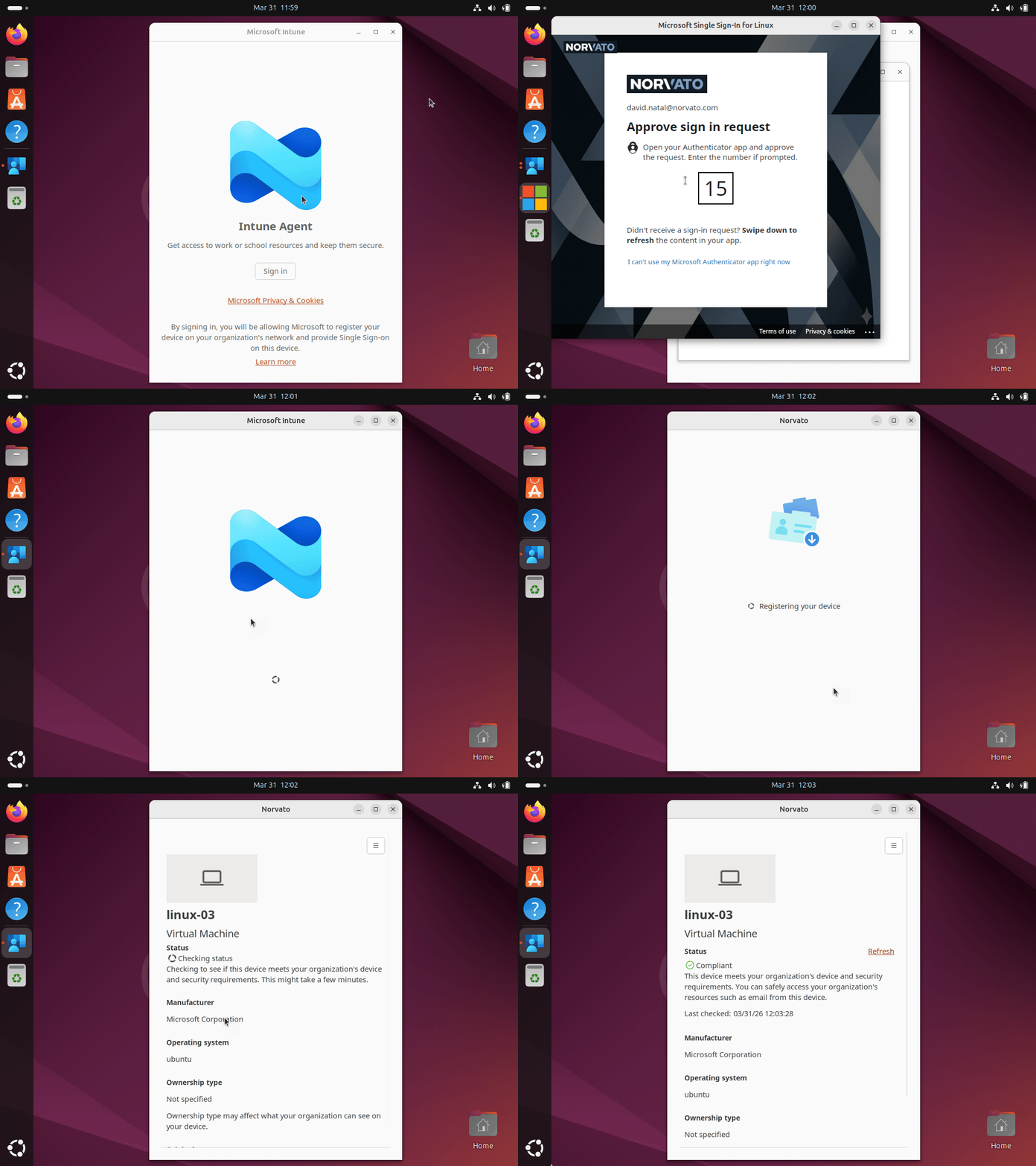
Please bear in mind Intune Agent for Linux app might seem a bit laggy sometimes, looking like its hung though it may be not, lots of actions are performed on background.
Right after onboarding a first compliance check kicks in. This first one is crucial, let it be, might take a few minutes extra.
How to Enroll: Manual Procedure
If you feel tech savvy enough and prefer to perform the onboarding in Norvato Intune tenant manually from terminal, we encourage you to have a read to Microsoft's official documentation.
Official Microsoft Documentation →Migrating from Visma
If you are migrating an Ubuntu device between Visma and Norvato tenants, our script automatically detects and offers you to delete previous Visma registrations.
Once deleted, proceed with the Phase 2 enrollment steps.
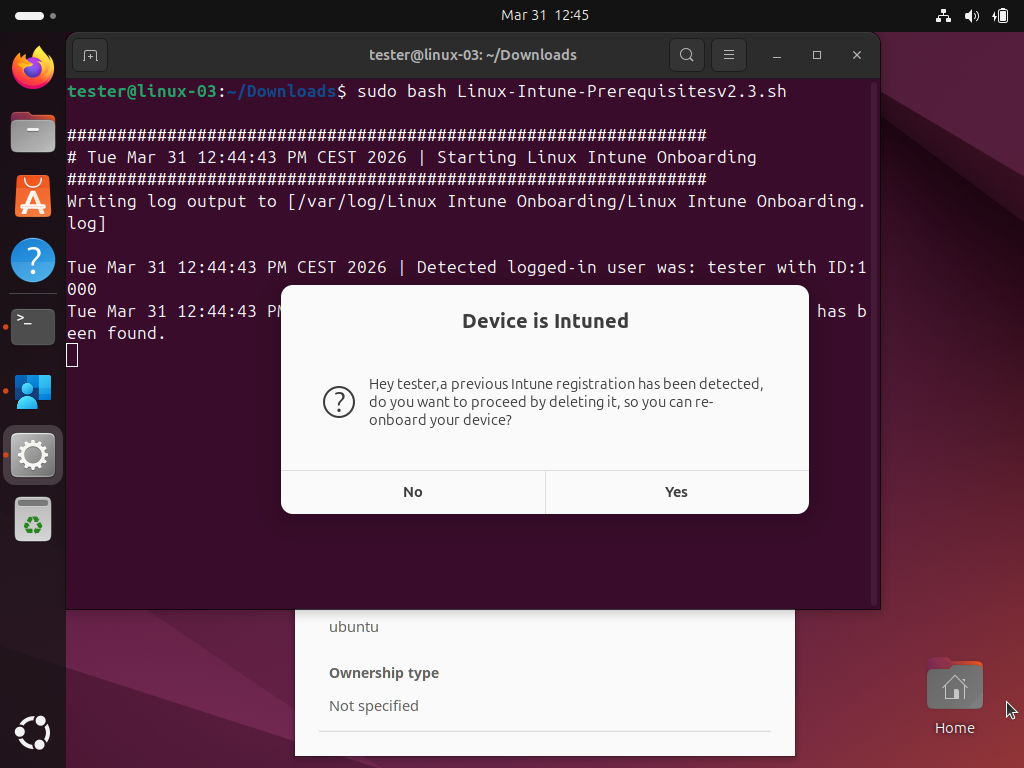
Local data is unaltered, everything should remain as where it is, however, as always, we recommend to first backup your data.
Extras: TPM 2.0 Auto-Unlock
Ubuntu 22.04/24.04 single partitioned LUKS encrypted systems with TPM 2.0 chips can automate disk decryption.
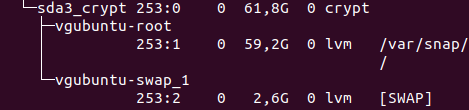
You will be prompted for your existing passphrase during the setup.
 Download TPM decryption script
Frequently Asked Questions
What do I get when onboarding?
You ensure your device meets Norvato's security standards. The system will automatically configure firewall settings, enforce OS update policies, and deploy the SentinelOne security agent to maintain a secure connection to internal resources.
How long does it take?
The entire process, including script execution and Intune registration, typically takes no longer than 20 minutes.
What if I'm not compliant?
Whatever the reason your device is not, is something you can see by clicking on View Issues.
Afterwards you can always remediate this scenario and re-run another check until it reports well.
What if my compliance reports as Not Evaluated?
If your device reports as Not Compliant inside the App, and by clicking on View issues you see some hints like: "We're still checking if you can access company resources", "We need to check the status of your device. This will be done in a few minutes"
Dont worry, you are experiencing a timeout because of Microsoft's backend. Past some sync time it will report nicely again.
Re-run check within an hour.